The new MELAtherm 20 in XXL: Discover now >

|
    • Unbenannt-1Best Sellers
    • Autoclave Tile
      • premium-klassePremium Class
      • Prime LinePrime Line (Class B)
      • Pro Line Product picturePro Line (Class B)
      • MicrosoftTeams-image (1196)-minPro Line (Class S)
      • 150 2Vacuclave 105 / 305
      • Vacuclave 550 Menu ElementVacuclave 550
      • Grossautoklaven-SystemloesungCliniclave 45 Series
      • 24-BL-StoererVacuklav 24 BL+
      • MELAtronic ProduktfotoMELAtronic Series
      • Zubehör Careclave ProduktfotoAccessories & components for autoclaves
    • Grossautoklaven-Systemloesung
      • Cliniclave 45 Produktfoto für Kaegorie MenuCliniclave 45
      • Cliniclave 45 M ProduktfotoCliniclave 45 M
      • Cliniclave 45 D ProduktfotoCliniclave 45 D
      • Cliniclave 45 MD ProduktfotoCliniclave 45 MD
      • Vacuclave 550 Menu ElementVacuclave 550
      • Großautoklaven Zubehör ProduktfotoAccessories & components for large autoclaves
    • 150 2
      • 150-ohne 1Vacuclave 105
      • 350-ohne 1Vacuclave 305
      • MELAquick ProduktfotoMELAquick Series
      • MELAtronic ProduktfotoMELAtronic Series
    • mt20-gross
      • mt20-grossMELAtherm 20
      • MT10EVO_Produkt_geschlossenMELAtherm 10 Evolution
      • Körbe und Adapter ProduktfotoLoading patterns
      • Collage-Korb 3-minBaskets & Adapters
      • MEtherm Process Agents ProduktfotoMEtherm Process Agents
      • teaser-washcheckMELAcontrol Wash Check
      • Regenerating SaltRegenerating Salt
      • MELAtherm Zubehör MenuAccessories & components for thermal disinfectors
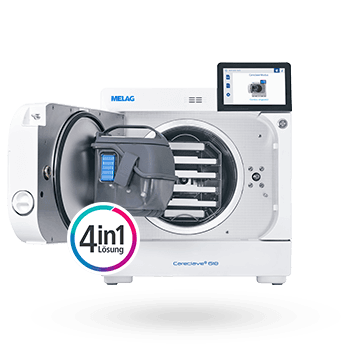
    • Careclave_Produkt_offen für Menü
      • Careclave_Produkt_offen für MenüCareclave
      • Menu Foto Carebox BlueCarebox Blue
      • Carebox Green Menu BildCarebox Green
      • Cooling Box ProduktfotoCooling Box
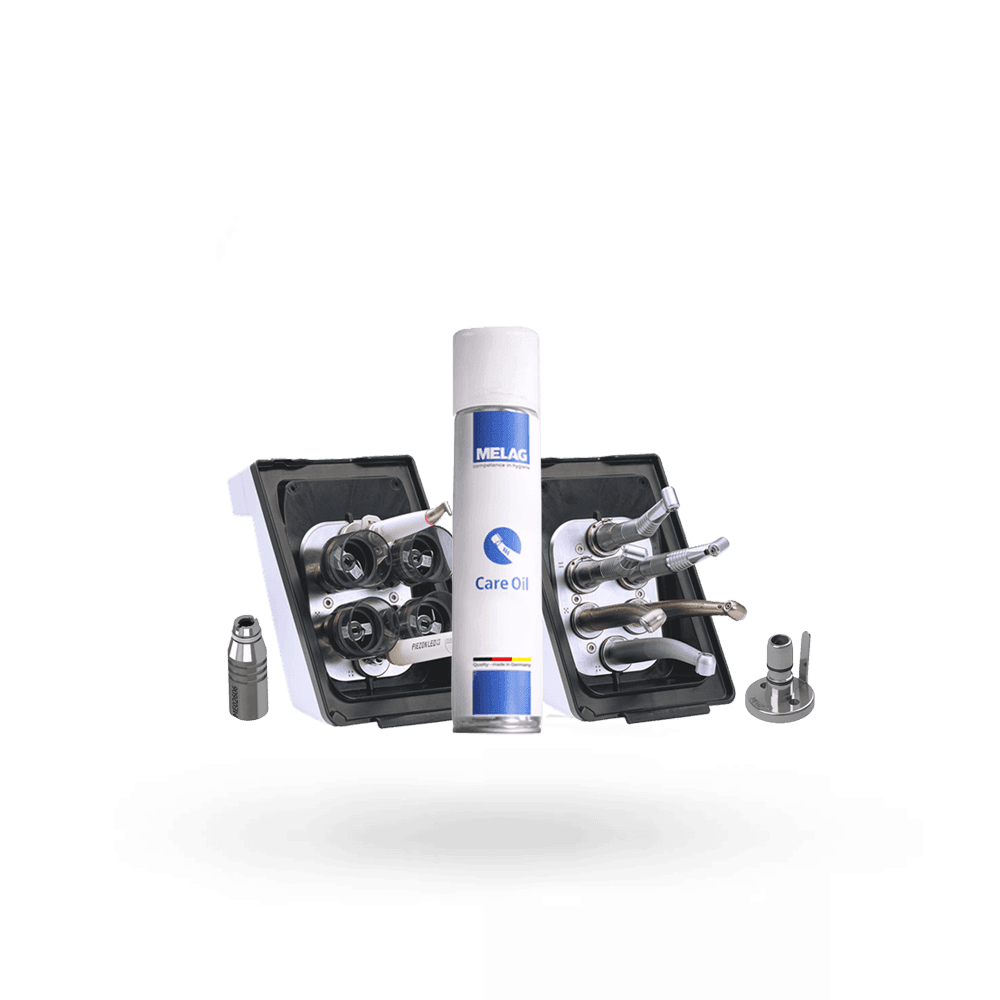
      • Care Oil ProduktfotoCare Oil
      • Zubehör Careclave ProduktfotoAccessories & components for Careclave
    • MicrosoftTeams-image (1170)-min
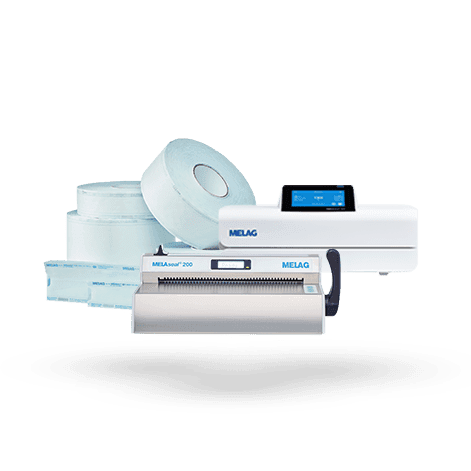
      • MicrosoftTeams-image (1420)-min(1)MELAseal 300
      • MELAseal 200 Menu FotoMELAseal 200
      • MELAseal 100 Bild MenuMELAseal 100+
      • MELAfol Menu BildMELAfol+
      • MELAcontrol Seal Check Routine Prüfung MenuRoutine Testing
      • Siegelnahtfestigkeit MaschineSeal Seam Stability Test
      • Zubehör MELAseal MenuAccessories & components for sealing devices
    • MicrosoftTeams-image (1169)-min
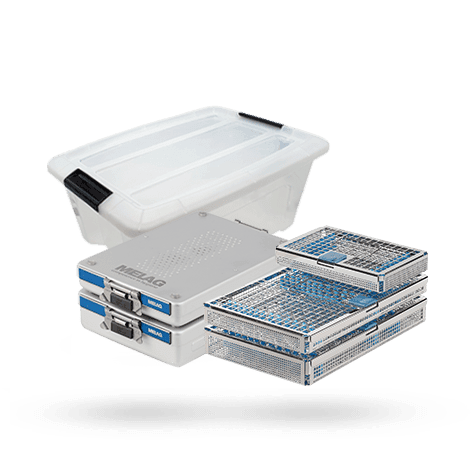
      • Trays neuMELAstore Trays
      • OTS MenüMELAstore Tray Ophthalmology
      • MELAstoreMELAstore Boxes
      • SterilisierbehälterSterilization Containers
      • me01100 1MELAstore transport box
      • MELAfol Menu BildMELAfol+
      •   SterilisationspapierSterilisation paper
      • Zubehör PackagingAccessories & components for sterile goods storage

    • MicrosoftTeams-image (1168)-min
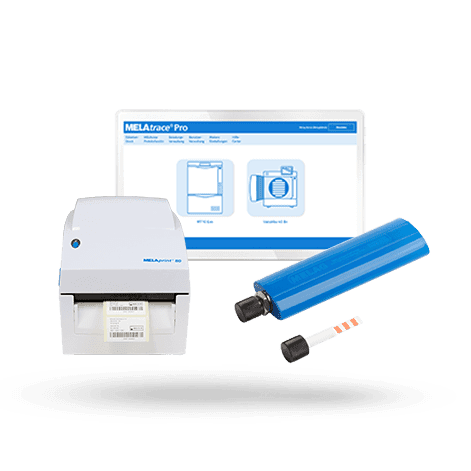
      • MELAtrace-Pro Menu IconMELAtrace
      • MELAverse Produkt KachelMELAverse
      • MELAprint 80MELAprint 80
      • MELAprint 60 ProduktfotoMELAprint 60
      • MELAdoc Titelbild-blau MELAdoc
      • MELAcontrol Menu FotoMELAcontrol
      • MELAflash ProduktfotoMELAflash
      • MELAnetBox Menu BildMELAnet Box
      • Zubehör DokuAccessories & components for documentation
    • MELAverse Produkt KachelMELAverse
    • MicrosoftTeams-image (1171)
      • MicrosoftTeams-image (1052)Care Oil Spray
      • MicrosoftTeams-image (1053)Chamber Protect
    • MicrosoftTeams-image (1172)-min
      • MELAdem 40 ProduktfotoMELAdem 40
      • MELAdem 47 ProduktfotoMELAdem 47
      • MELAdem 53 Menu FotoMELAdem 53
      • MELAdem 53 CMELAdem 53 C
      • MELAdem 56 ProduktfotoMELAdem 56
      • MELAjet ProduktfotoMELAjet
      • MELAtest 60 ProduktfotoMELAtest 60
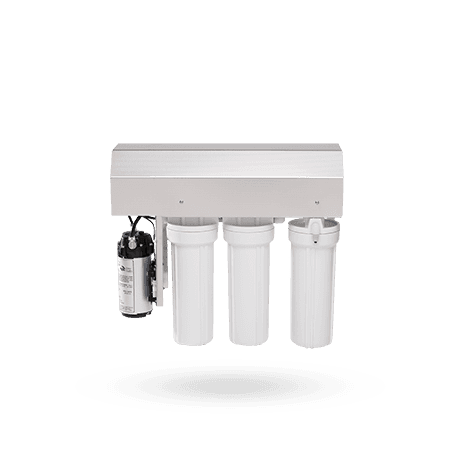
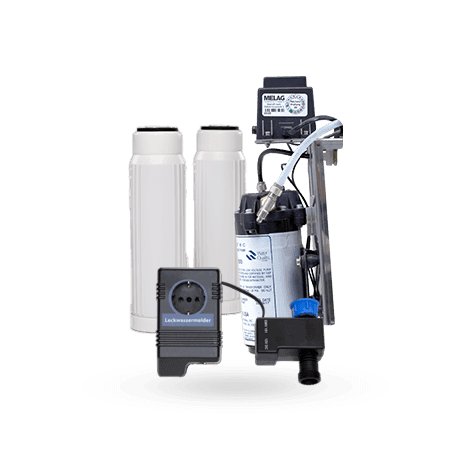
      • Zubehör WasserAccessories & components for water treatment
    • MicrosoftTeams-image (1167)-min
      • MELAcontrol Menu FotoMELAcontrol Helix
      • MELAcontrol ProMELAcontrol Pro
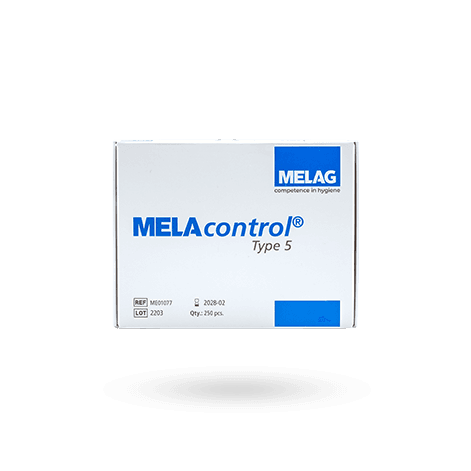
      • MELAcontrol Type 5MELAcontrol Type 5
      • MELAcontrol Bowie & Dick TestMELAcontrol Bowie & Dick Test
      • teaser-washcheckMELAcontrol Wash Check
      • MELAcontrol Seal Check Routine Prüfung MenuMELAcontrol Seal Check
      • Siegelnahtfestigkeit MaschineSeal Seam Stability Test
      • Menu ink TestMELAcontrol Ink Test
    • MELAfol ProduktfotoConsumables
    • Downloadcenter Tile ImageDownloadcenter
    • Service-troubleshootingTroubleshooting
    • Video Tutorials Autoclave
      • Careclave Tutorial MenuCareclave Tutorials
      • Autoklaven Tutorial Autoclaves Tutorials
      • Tutorial Thermodesinfektor MenuWasher-Disinfector Tutorials
      • Siegelgeräte Menu TutorialMELAseal 200 Tutorials
      • MS300 BalkenteaserMELAseal 300 Tutorials
      • MELAtrace TutorialMELAtrace Tutorials
    • Gerätertegistrierung Menu BildDevice Registration
    • Techniker-schulung Menü BildTechnical Training
    • KonfiguratorConfigurator
    • save money Promotions
    • Entdecken-referenzSuccess Stories
    • Hygiene Hub TileInspiration & Tips
    • Tutorials TileNews
    • MELAG FamilieFamily Business & Jobs
    • Beratung-uebersicht
      • Beratung-uebersichtBook a consultation: On-site, online or in a showroom
      • entdecken-ansprechpartnerYour sales contacts
      • Messen & Kongresse Bild MenuFairs & Congresses
      • beratung-kontaktformularContact form
      • Gebauer GFCompany & Apprenticeship
    • entdecken-ansprechpartner
      • Beratung-uebersichtBook a consultation: On-site, online or in a showroom
      • entdecken-ansprechpartnerYour sales contacts
      • Messen & Kongresse Bild MenuFairs & Congresses
      • beratung-kontaktformularContact form
      • Gebauer GFCompany & Apprenticeship
    • Messen & Kongresse Bild MenuFairs & Congresses
    • beratung-kontaktformularContact form
    • Gebauer GFCompany & Apprenticeship
    • Dental
    • Medical
    • Ophthalmo
    • Hospital
    • Veterinary
    • Podiatry
Select language and country

Newsletter Subscription

Register for our newsletter and always stay up to date.

Products
  • Instrument Reprocessing
  • Autoclaves
  • Large Autoclaves
  • Washer-Disinfectors
  • MELAcare
  • Careclave
  • Sealing Devices
Service
  • Downloads
  • Troubleshooting
  • Video Tutorials
  • Blog
Company
  • We are MELAG
  • Sustainability
  • History
  • News
  • Contact
  • Instrument Reprocessing
  • Autoclaves
  • Large Autoclaves
  • Washer-Disinfectors
  • MELAcare
  • Careclave
  • Sealing Devices
  • Downloads
  • Troubleshooting
  • Video Tutorials
  • Blog
  • We are MELAG
  • Sustainability
  • History
  • News
  • Contact
  • Imprint
  • Terms and Conditions
  • Privacy
  • Whistleblower
  • Open Cookie Settings

© MELAG Medizintechnik GmbH & Co. KG

Placeholder for alt text

Determine the software version of your MELAG device

Please select the device you want to determine the current software version for. Opening the link will take you to detailed instructions. If you do not find your product in the following list, it may not have a software version. In this case, please download the latest version of the user documents.

Placeholder for alt text

MELAG Customer Service

You have questions? We the answers!

Contact personsLive DemoFree technician exam
  1. Turn on your device.

  2. Open the status menu by pressing the information icon 

    in the upper right corner of the home screen.

  3. Another icon will open next to the information icon. Press the icon

    to open the status menu.

  4. A new screen opens up. Scroll down the screen to the item "Software" and open it by pressing the item again.

  5. You can now find your current software version in the first line.

  1. Turn on your device.

  2. Open the status menu by pressing the information icon 

    in the upper right corner of the home screen.

  3. You can now find your current software version in the third line.

  1. Turn on your device and close the door.

  2. Select "Device info" in the upper menu bar by pressing the fourth icon 

    .

  3. A new window "Info and Status" opens up.

  4. You can now find your current software version beneath the item "02 Software", right at the first place under the heading "Version" on the left side of the screen.

To determine your current software version please open your latest log file.

You can open the log file quickly and easily as shown in the following video as an example at MELAtherm:

Watch video

Depending on the output media used, the line in which you can find your software version differs.

When using MELAflash for the output of a log file:

Scroll down to the bottom of your log file. In the last line of the log file you can find a total of four number groups, seperated by a blank space. The third number group indicates your current software version.

When using a MELAprint 44 device or MELAnet Box for the output of an log file:

Scroll down to the bottom of your log file. In the penultimate line of the log file you can find a total of four number groups, seperated by a blank space. The third number group indicates your current software version.

If you have a new device and do not have a log file yet, please download the latest version of the user manual.

  1. Turn on your device and close the door.

  2.  Select "Device info" in the upper menu bar by pressing the fourth icon

    .

  3. A new window "Info and Status" opens up.

  4. You can now find your current software version beneath the item "02 Software", right at the first place under the heading "Version" on the left side of the screen.

  1. Turn on your device.

  2. Briefly press the buttons

    and

    simultaneously.

  3. Afterwards navigate through the menu by using

    until the menu item "Status 02" is displayed. The menu now automatically rotates through various information.

  4. You can find your current software version when "FW-V" (firmware version) is displayed.

  1. Turn on your device and close its door.

  2. Open the status menu by pressing the icon 

    on the start screen. A new window "device data" opens up.

  3. You can find the current software version of your device in the second line of the screen.

  1. Turn on your device.

  2. Navigate through the menu by using the buttons

    or

    until you're at the menu item "Info".

  3. Confirm the "Info" screen by pressing OK.

  4. Navigate through the menu by pushing the buttons 

    or

    until you're at the menu item "Version".

  5. After confirming the screen with OK your current software version is shown on the display.

  1. Turn on your device.

  2. After the display lights up, your current software version is automatically shown on the second line of the screen.

  1. Open MELAtrace on your computer and log in.

  2. By clicking on the MELAtrace logo in the upper left corner of the screen another window opens up.

  3. You can now find your current software version in the second line beneath the item "Info".