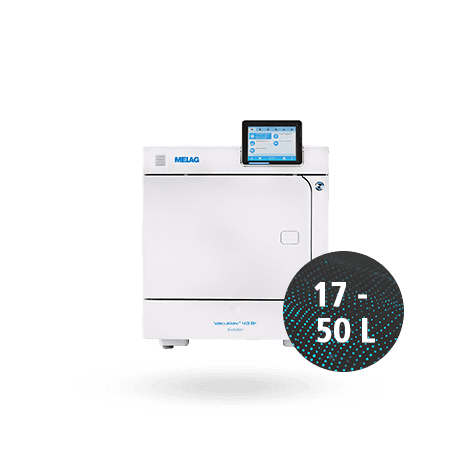
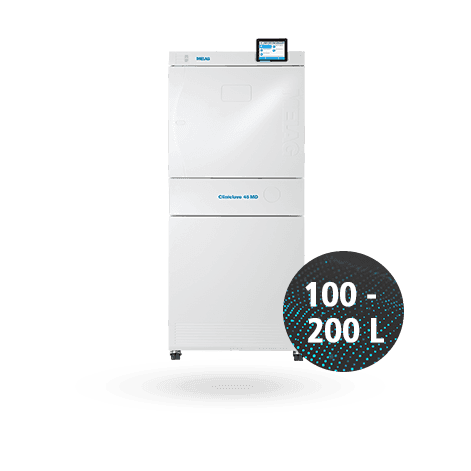
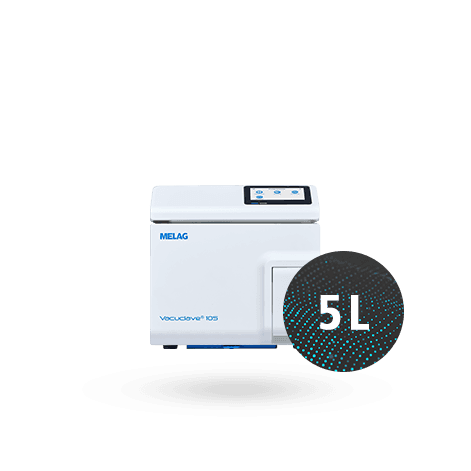
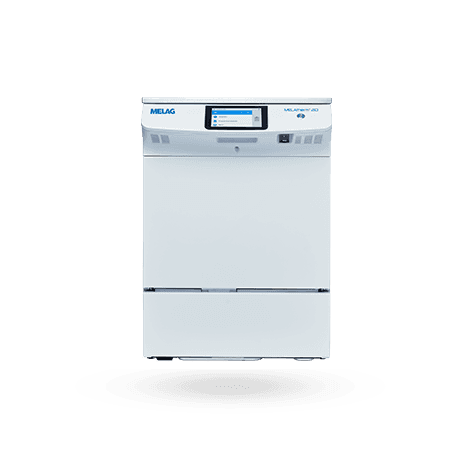
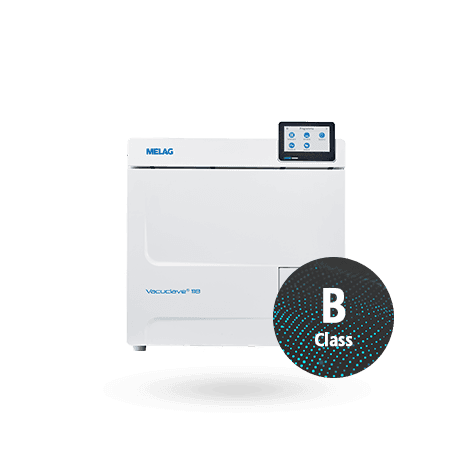
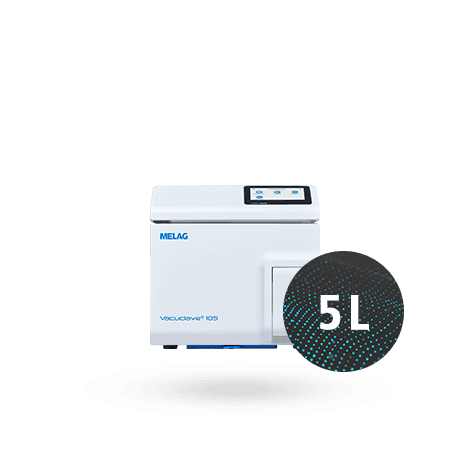
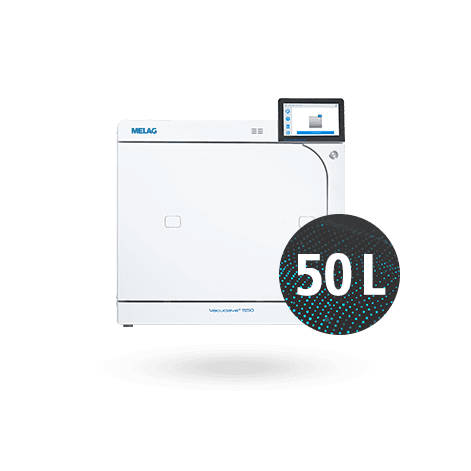
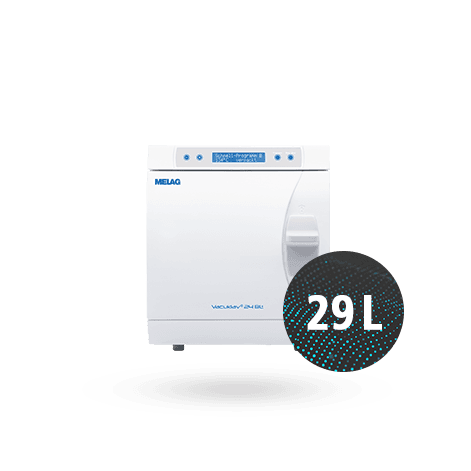
Turn on your device.
Open the status menu by pressing the information icon
in the upper right corner of the home screen.
Another icon will open next to the information icon. Press the icon
to open the status menu.
A new screen opens up. Scroll down the screen to the item "Software" and open it by pressing the item again.
You can now find your current software version in the first line.
Turn on your device.
Open the status menu by pressing the information icon
in the upper right corner of the home screen.
You can now find your current software version in the third line.
Turn on your device and close the door.
Select "Device info" in the upper menu bar by pressing the fourth icon
.
A new window "Info and Status" opens up.
You can now find your current software version beneath the item "02 Software", right at the first place under the heading "Version" on the left side of the screen.
To determine your current software version please open your latest log file.
You can open the log file quickly and easily as shown in the following video as an example at MELAtherm:
Depending on the output media used, the line in which you can find your software version differs.
When using MELAflash for the output of a log file:
Scroll down to the bottom of your log file. In the last line of the log file you can find a total of four number groups, seperated by a blank space. The third number group indicates your current software version.
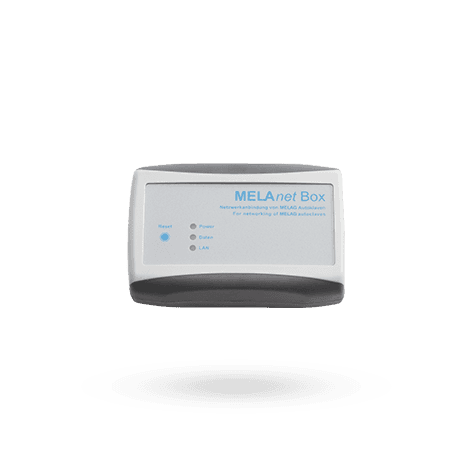
When using a MELAprint 44 device or MELAnet Box for the output of an log file:
Scroll down to the bottom of your log file. In the penultimate line of the log file you can find a total of four number groups, seperated by a blank space. The third number group indicates your current software version.
If you have a new device and do not have a log file yet, please download the latest version of the user manual.
Turn on your device and close the door.
Select "Device info" in the upper menu bar by pressing the fourth icon
.
A new window "Info and Status" opens up.
You can now find your current software version beneath the item "02 Software", right at the first place under the heading "Version" on the left side of the screen.
Turn on your device.
Briefly press the buttons
and
simultaneously.
Afterwards navigate through the menu by using
until the menu item "Status 02" is displayed. The menu now automatically rotates through various information.
You can find your current software version when "FW-V" (firmware version) is displayed.
Turn on your device and close its door.
Open the status menu by pressing the icon
on the start screen. A new window "device data" opens up.
You can find the current software version of your device in the second line of the screen.
Turn on your device.
Navigate through the menu by using the buttons
or
until you're at the menu item "Info".
Confirm the "Info" screen by pressing OK.
Navigate through the menu by pushing the buttons
or
until you're at the menu item "Version".
After confirming the screen with OK your current software version is shown on the display.
Turn on your device.
After the display lights up, your current software version is automatically shown on the second line of the screen.
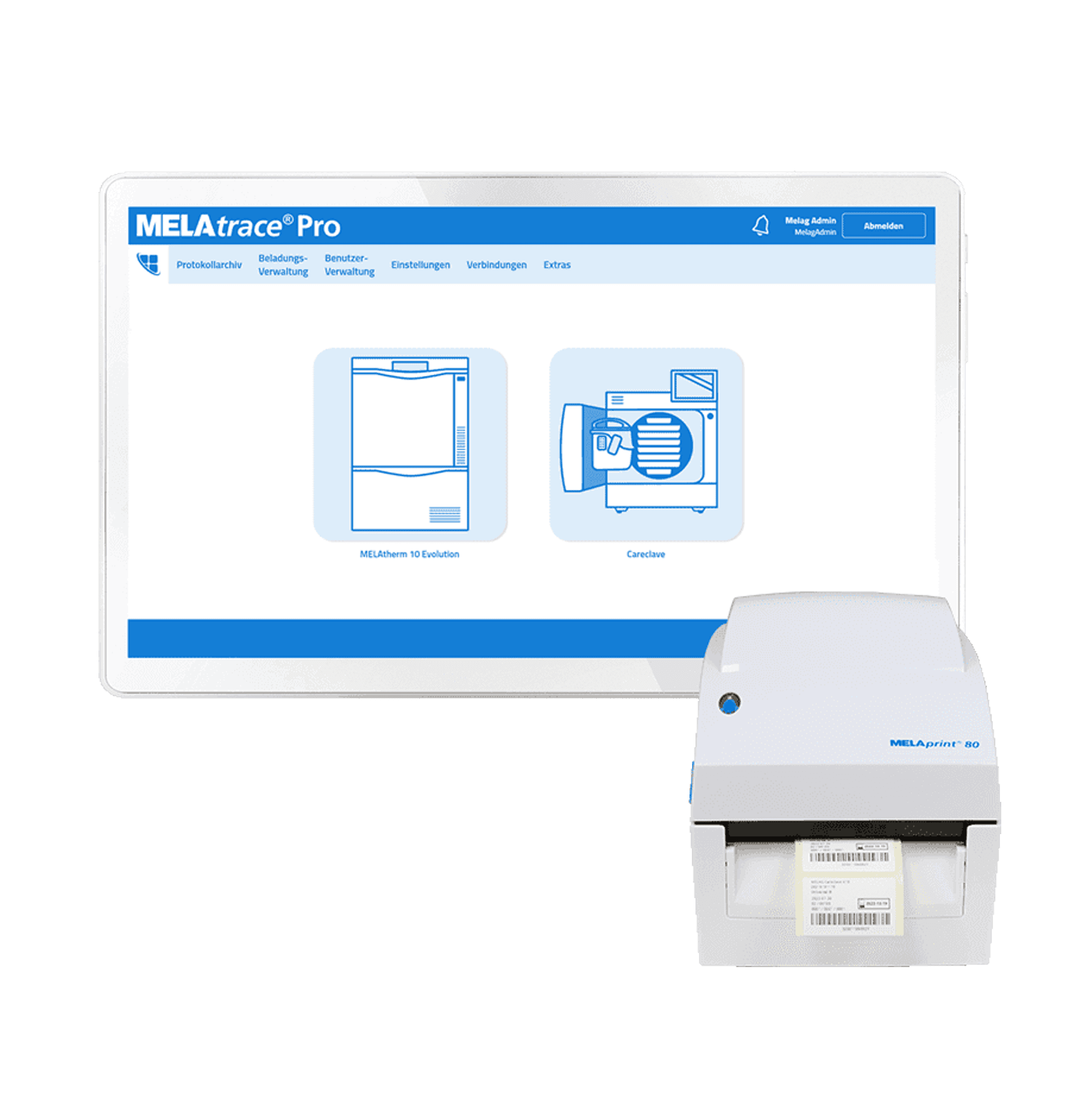
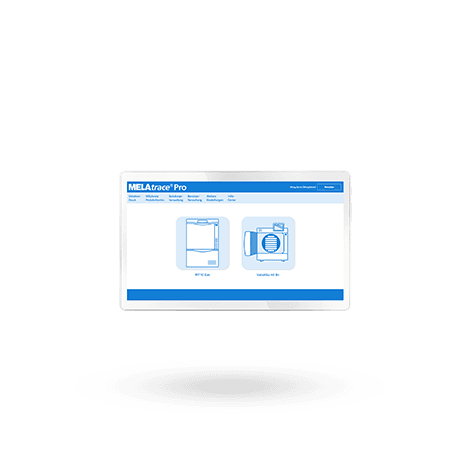
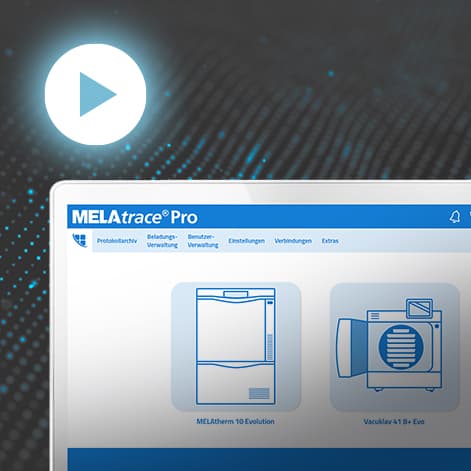
Open MELAtrace on your computer and log in.
By clicking on the MELAtrace logo in the upper left corner of the screen another window opens up.
You can now find your current software version in the second line beneath the item "Info".